Flagging a Reservation as Red-Eye
Users can flag only the reservations with the following status as Red-Eye:
-
Reserved
-
Arriving
-
In-House
When the Red-Eye Arrival feature setting is enabled, users with the Stay_UpdateRedEyeArrivals permission can flag the reservation as Red-Eye by clicking on the Red-Eye badge on the Reservation Summary section on the Reservation screen. When clicked, the Update Red-Eye Arrival pop-up screen appears that displays the following details:
|
Field |
Description |
|---|---|
|
Guest Arrival Date |
Displays the date following the scheduled arrival date by default. Users cannot modify the date. |
|
ETA |
Allows users to enter the estimated time of arrival for the reservation. |
|
Update Guest Arrival Status |
Allows users to select the status of the Red-Eye reservations. Users can select from the following options:
|
|
Username |
Username of the user who is flagging the reservation as Red-Eye. |
|
Password |
Password of the user. |
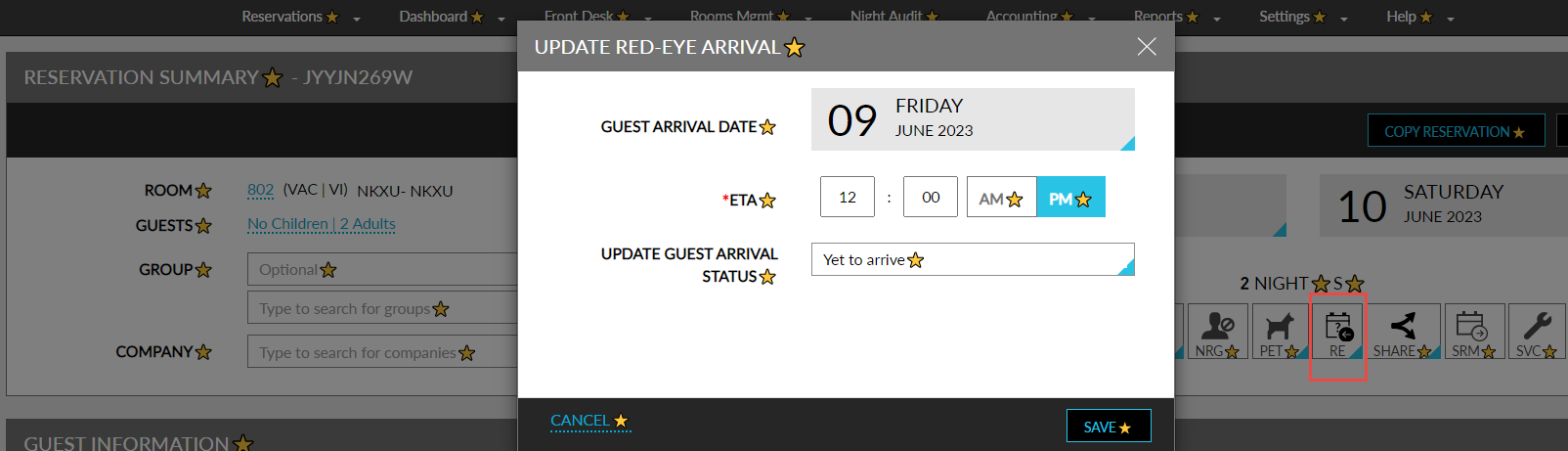
When users click Save, the reservation is successfully flagged as Red-Eye and the Red-Eye badge is enabled on the Reservation Summary section. When users hover over the bade, the Red-Eye status of the reservation is displayed in the following format: Red-Eye (Status). For example, Red-Eye (Yet to arrive).
Users can update the ETA and the Guest Arrival Status of the Red-Eye reservations whenever required by clicking on the Red-Eye badge.
Users to mark reservations that do not have a room assigned as red-eye reservations and can also release the room assigned to a red-eye reservation.